
One unified bar on every screen
You do not need to memorize terminal commands or hunt through menus to get work done in LeapTerm. Whether you are on the Home screen, browsing Servers, managing AI Tasks, or working inside a live Terminal, the bottom Smart Omnibox gives you a single, familiar place to type commands or ask questions in plain English.
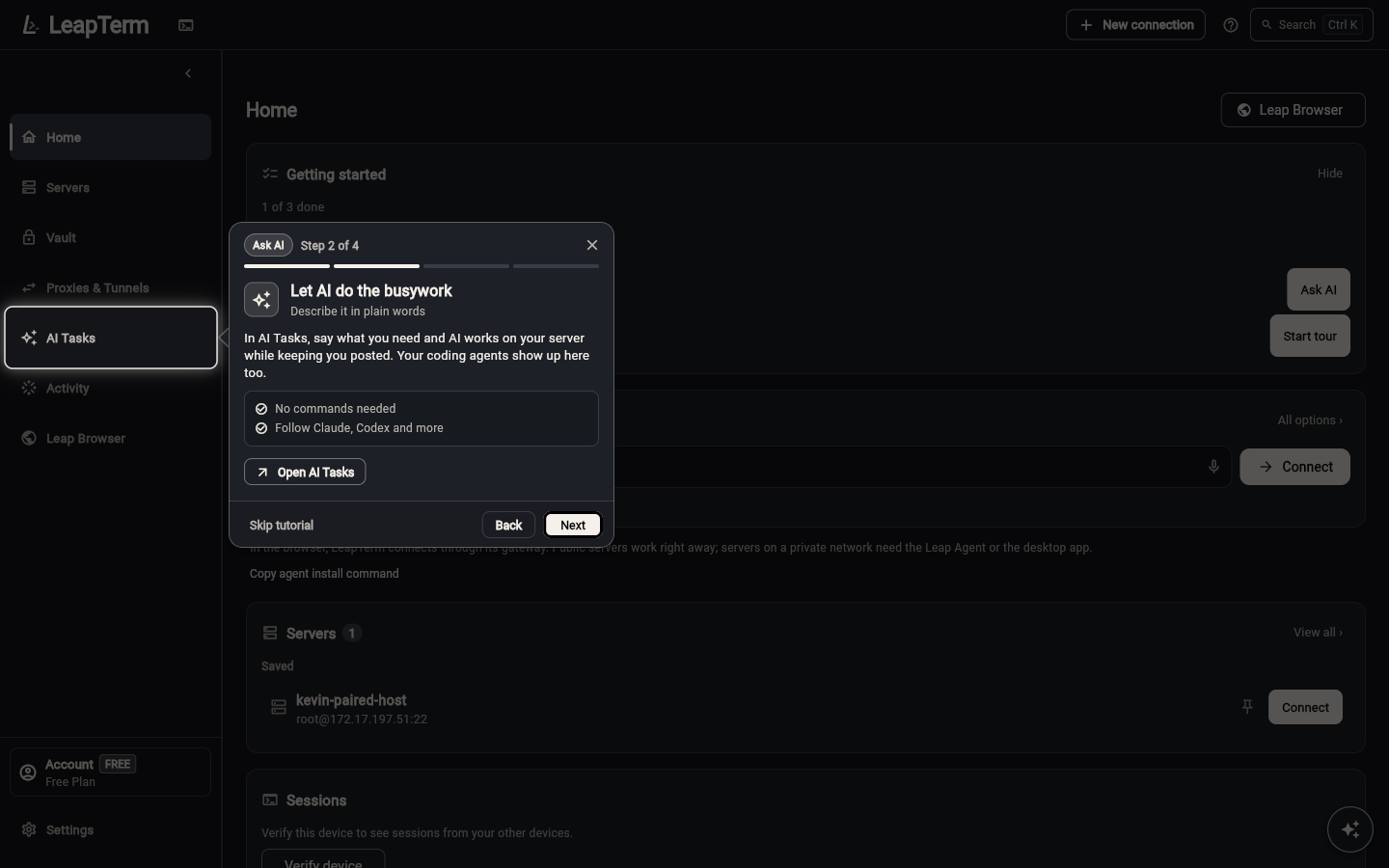
When you switch to the AI Tasks page, that same bottom composer bar serves directly as your AI chat box—so you never see duplicate input bars competing for your attention.
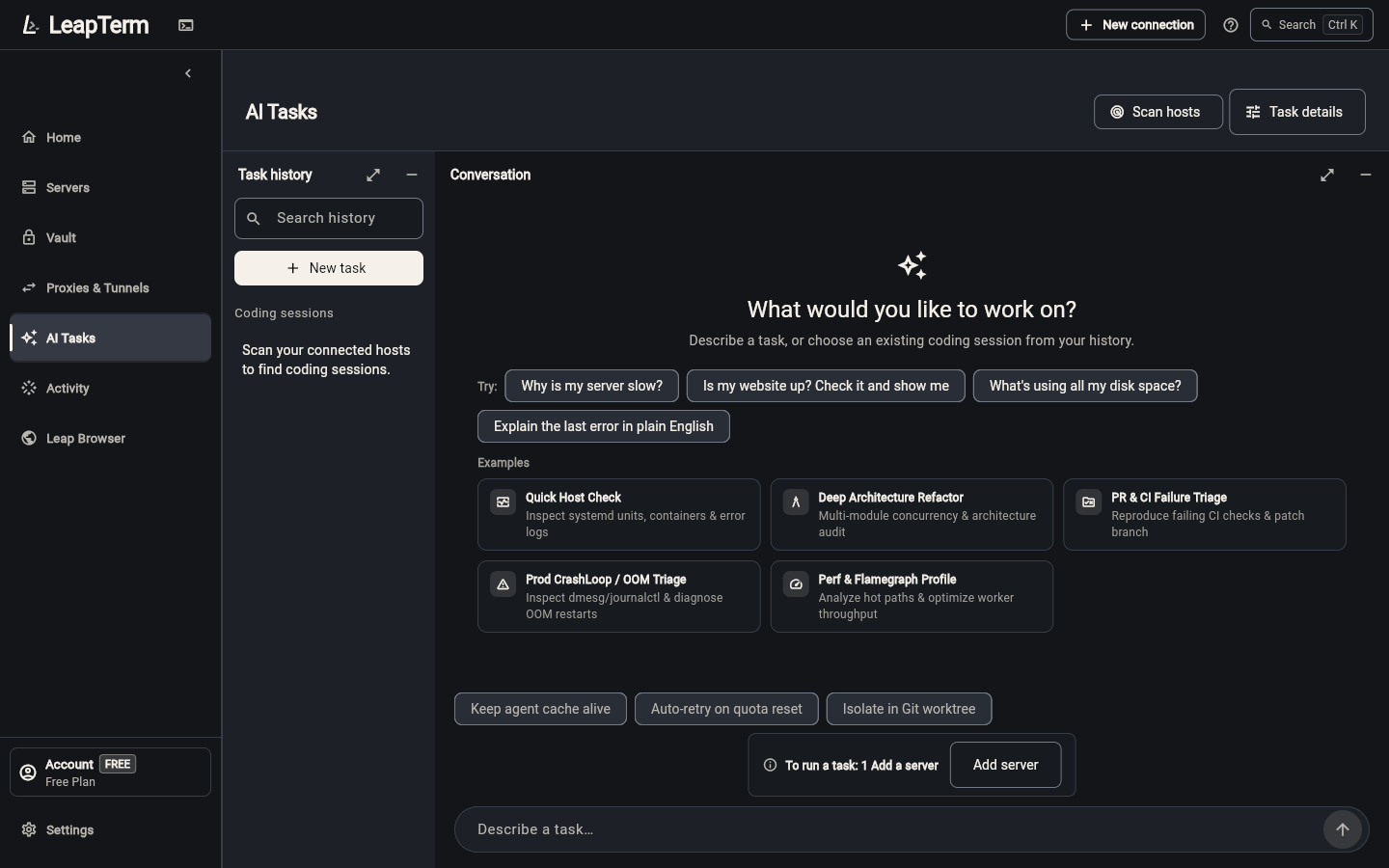
Minimize and expand with the ^ tab
Whenever you want the AI Companion out of the way, click its minimize button. Instead of leaving behind a bulky banner or covering up your terminal output, the companion folds neatly into a small ^ tab sitting flush on the top edge of the bottom composer bar.
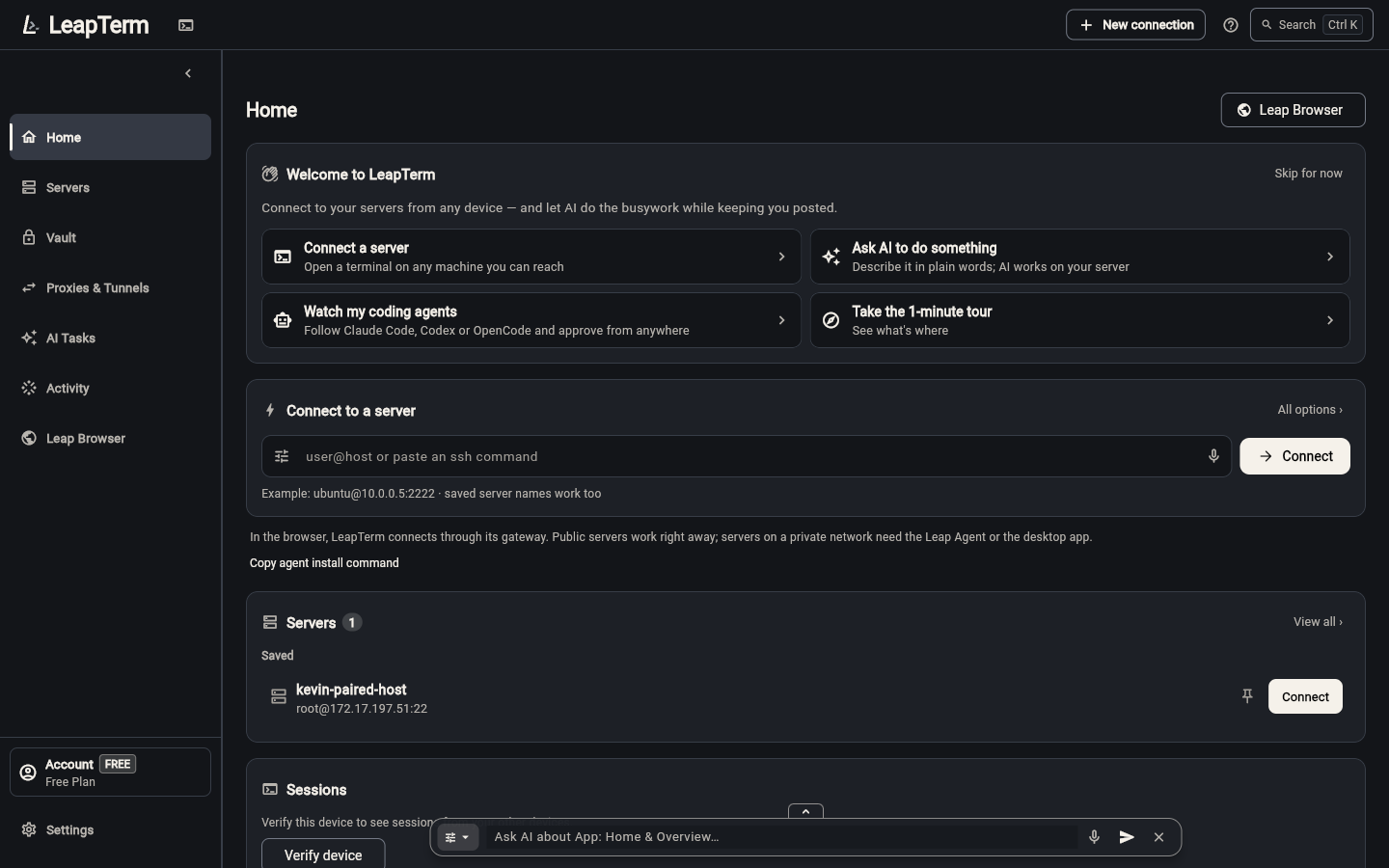
Click the ^ tab anytime to bring your conversation right back where you left off.
Ask "how to" questions and let AI do it for you
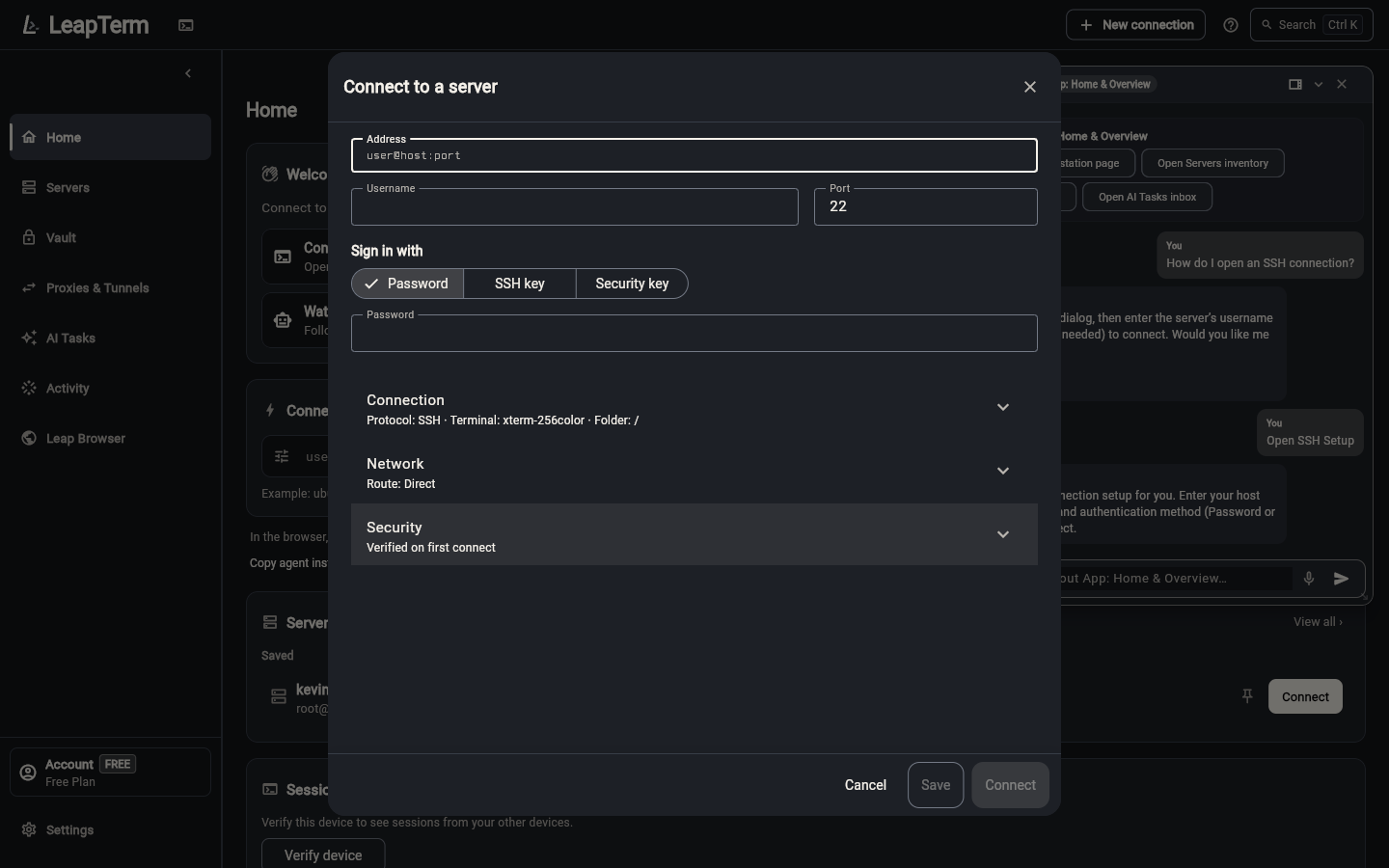
If you are not sure how to set something up, just ask the AI Companion in everyday language. For example, if you type "How do I open an SSH connection?", the companion explains the steps clearly, checks what actions are available on your current screen, and asks:
"Would you like me to open the New Session dialog for you now?"
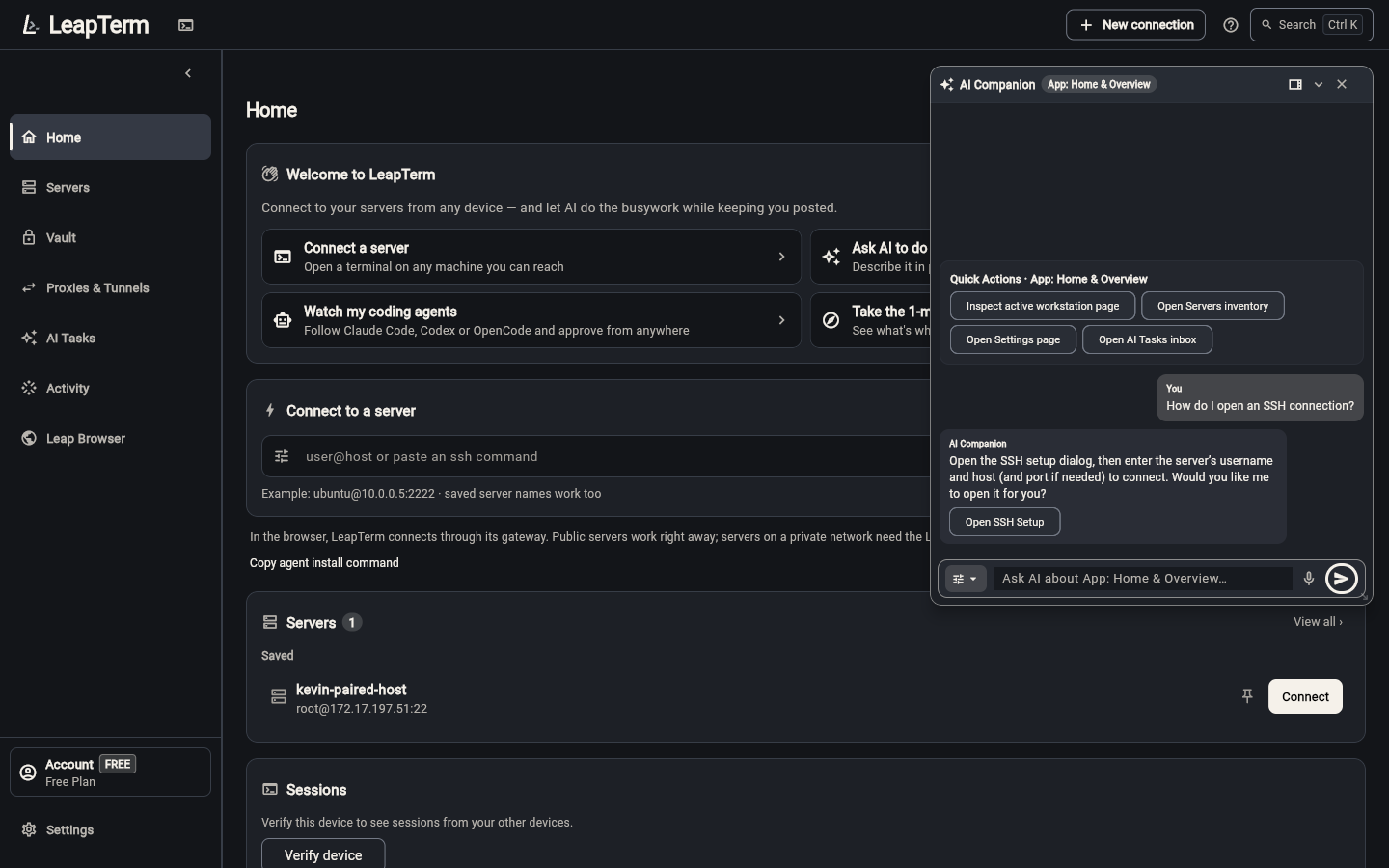
Simply reply yes, and LeapTerm opens the New Session setup dialog for you automatically so you can fill in your server details right away.
Open graphical apps and websites naturally
You can also ask the AI Companion to launch graphical programs or open websites without worrying about technical protocol settings:
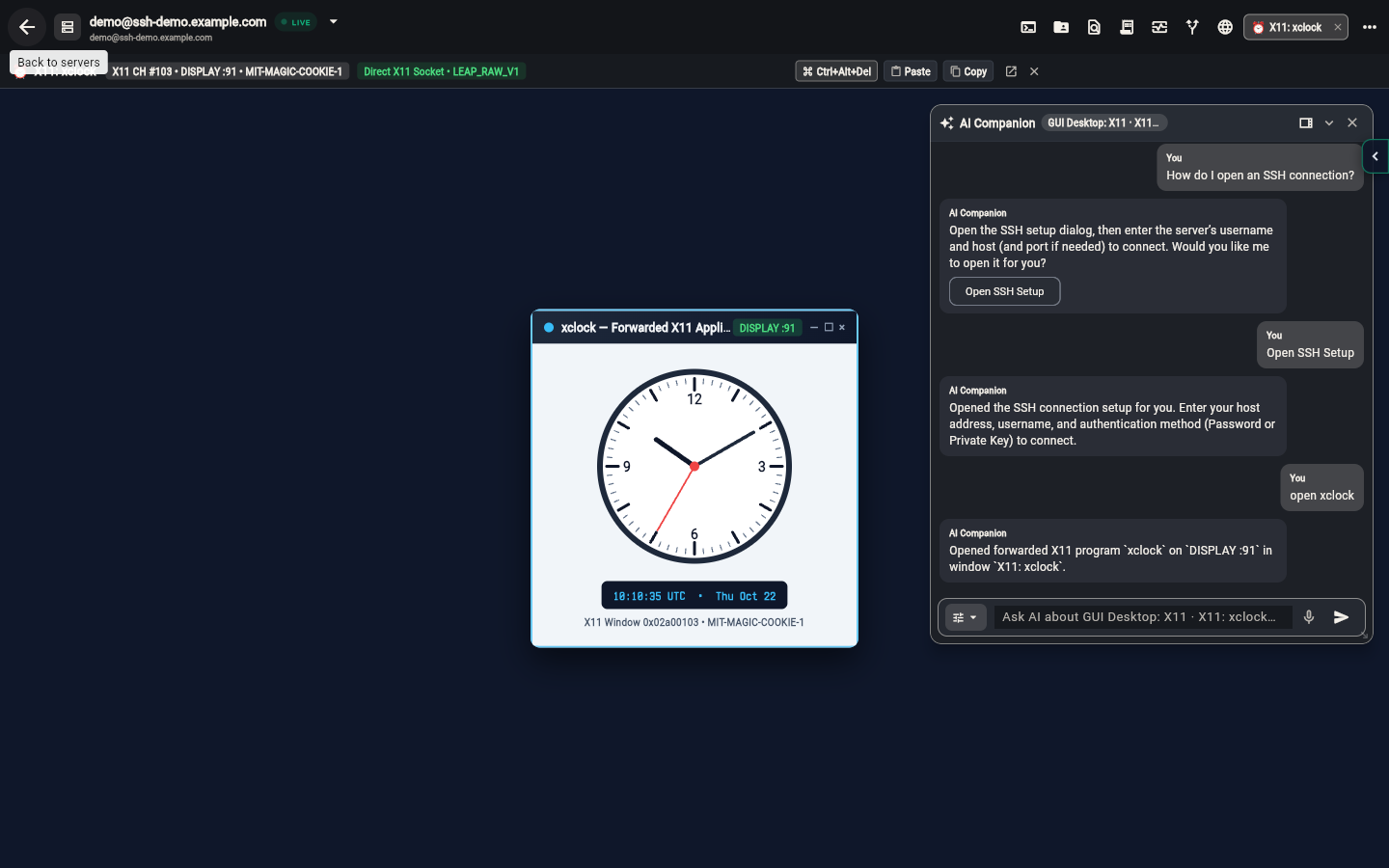
- Open a graphical Linux app: Ask for an app in plain words—such as
open xclock—without needing to mention X11. LeapTerm launches the app in an X11 window by default (or politely asks if you would like to use VNC or RDP if X11 is not turned on for that server), complete with a clean icon-only dock button in the workspace header. - Open a website: Type a request like
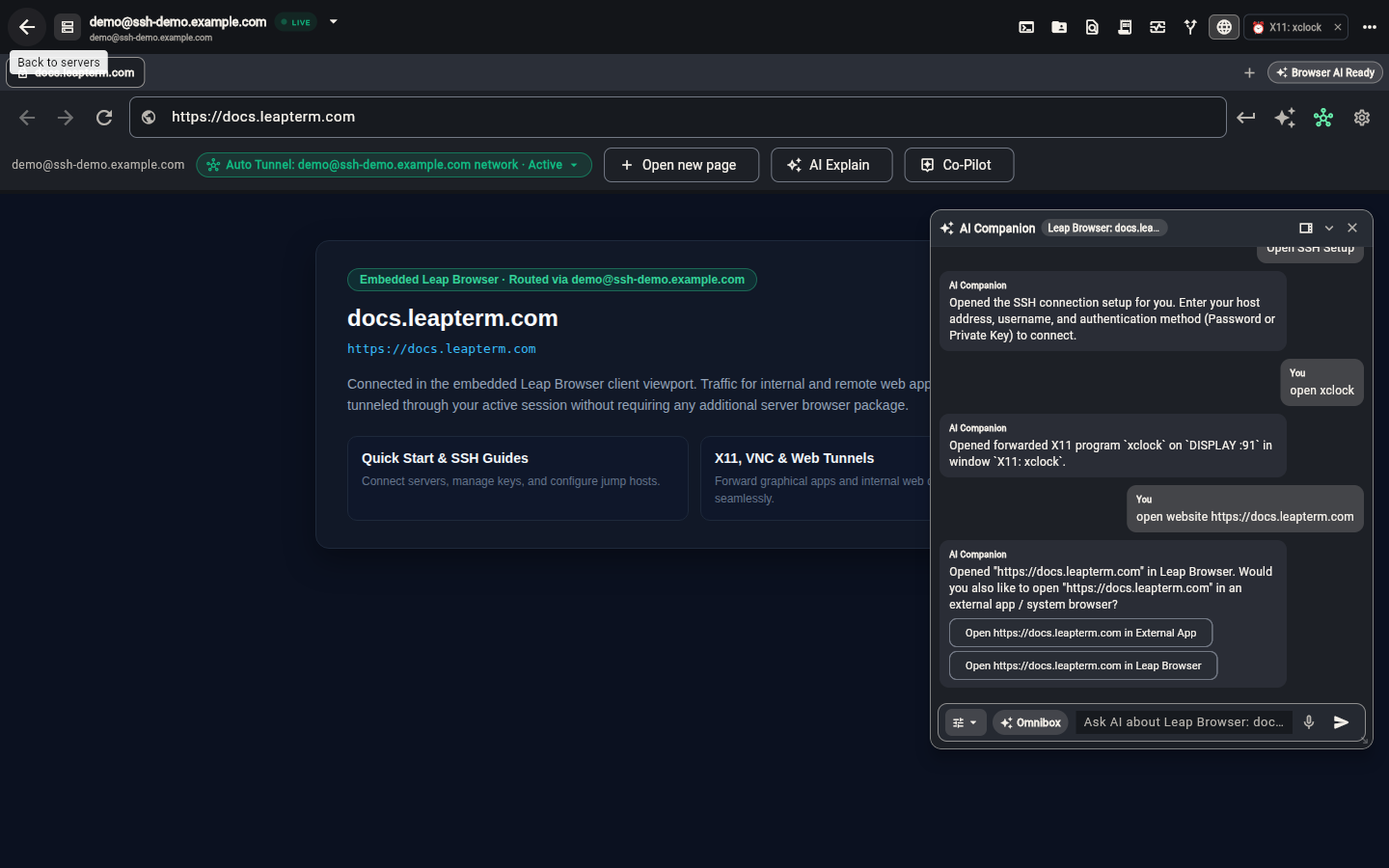
open website https://example.com. LeapTerm opens the page directly inside the built-in Leap Browser tab and asks whether you would also like to open it in your device's external web browser.
How context is kept lightweight and private
When you ask a question, LeapTerm shares a lightweight text summary of what screen you are on and recent terminal text (while automatically scrubbing sensitive passwords and secrets) so the assistant can give you relevant answers. It never streams continuous video recordings of your screen—visual snapshots are only shared if you explicitly attach an image or ask the assistant to inspect a visual canvas.
Continue with AI assistance and voice to choose your AI provider, or explore agents and supervised tasks for multi-step project automation.