
Catch flag typos before you press Enter
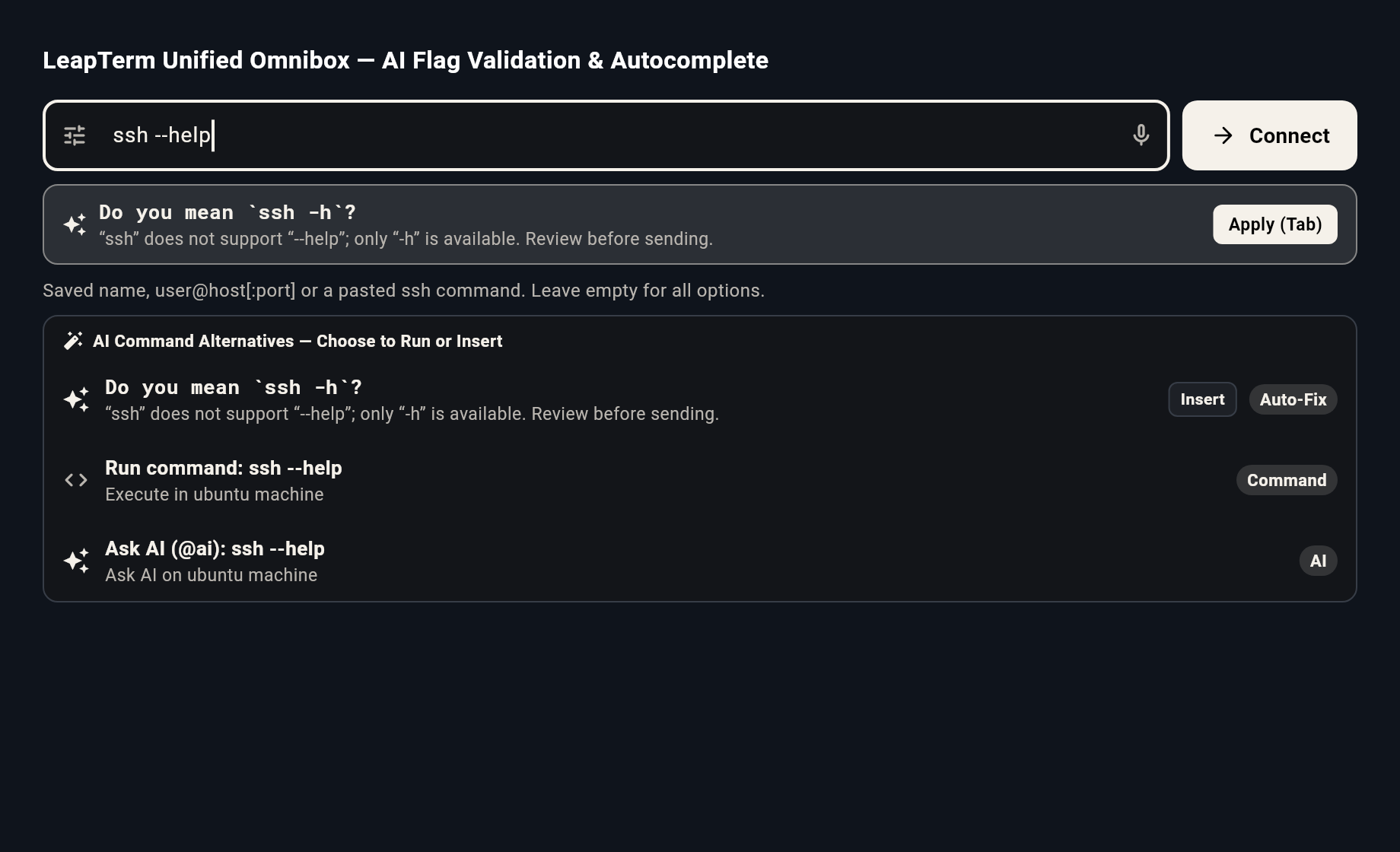
Command-line tools are picky about exact flags. For example, many programs accept --help, while ssh expects -h instead. When you type a common flag mistake like ssh --help in either the bottom Omnibox or the terminal input bar, LeapTerm spots the issue right away and shows a friendly Do you mean ssh -h? banner.
You get the same helpful correction banner when typing directly inside an active terminal session.
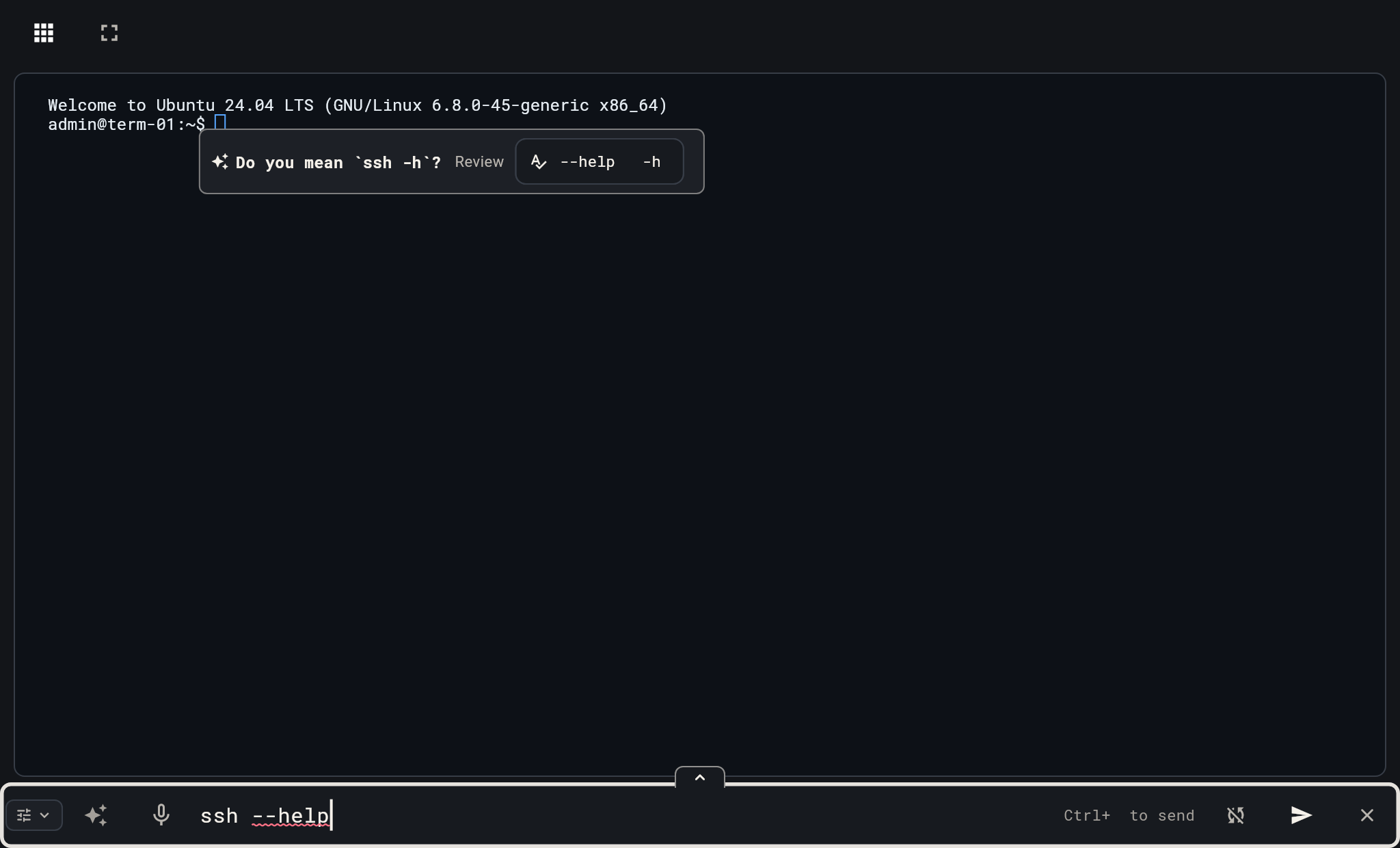
To use a correction:
- Start typing your command in the bottom bar or terminal input.
- When the Do you mean ...? banner appears, click the suggested command or press Tab to replace the mistyped flag automatically.
- Review the updated command and press Enter when you are ready to run it.
Reuse recent history and saved snippets
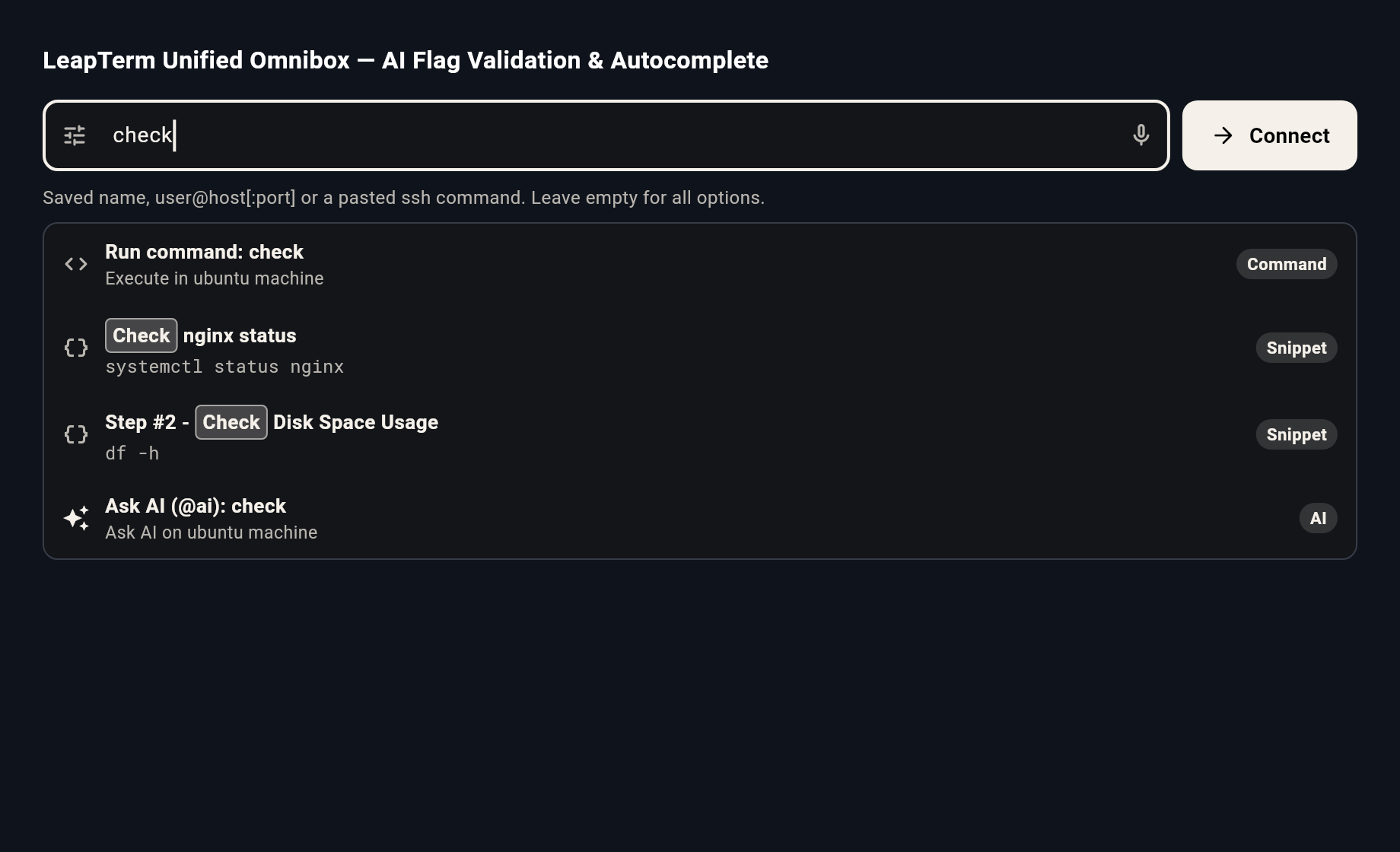
You do not need to memorize long commands or retype the same flags every day. As soon as you start typing, LeapTerm searches both your recent command history and your saved snippets and highlights the matching letters in a clear pill so you can scan the list at a glance.
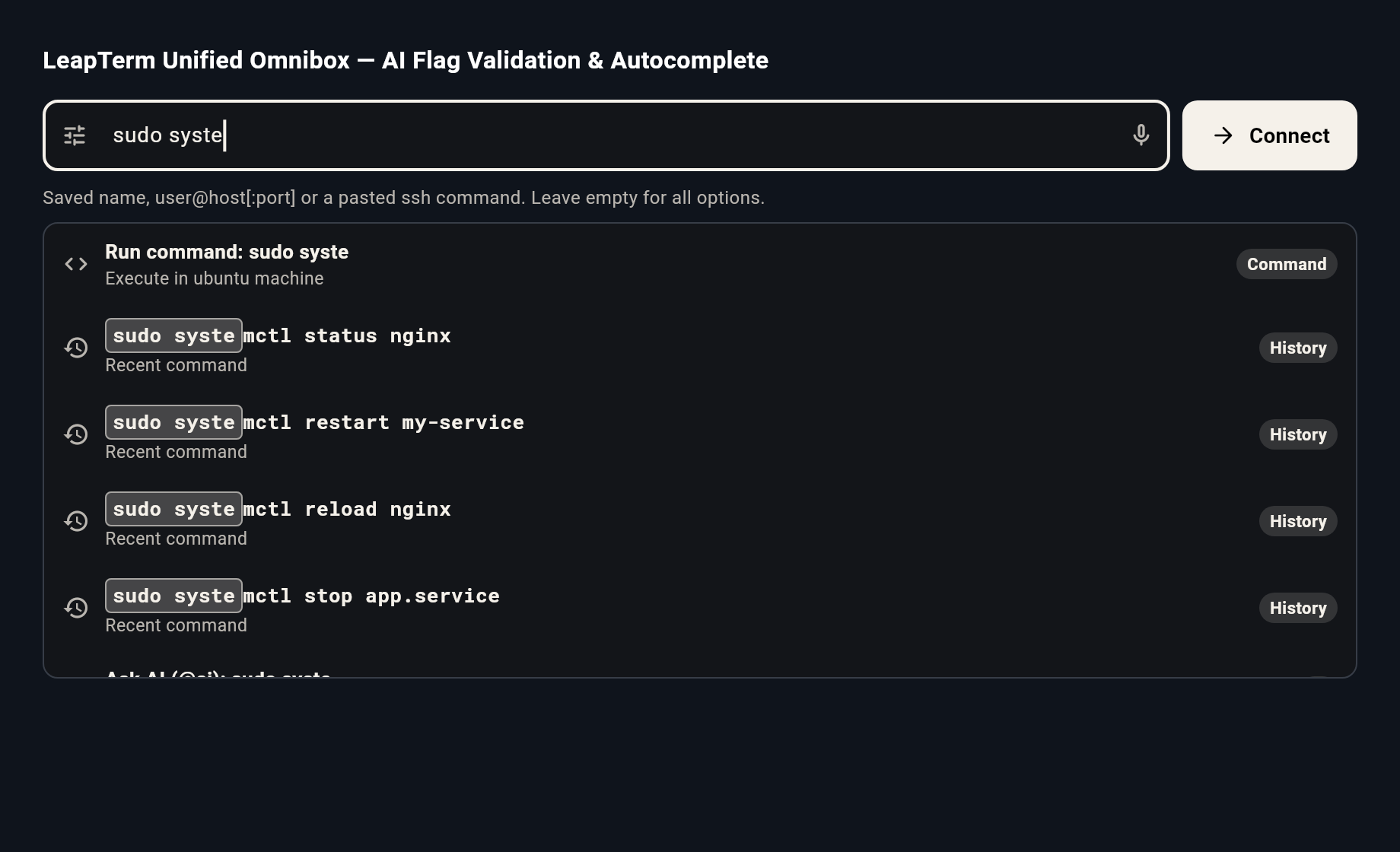
If you have saved reusable commands under Settings → Snippets, matching snippets appear alongside your history with their friendly display names and command previews.
When you are typing directly inside a connected terminal, a floating completion card follows your prompt so you can pick a saved snippet or recent command without taking your eyes off your work.
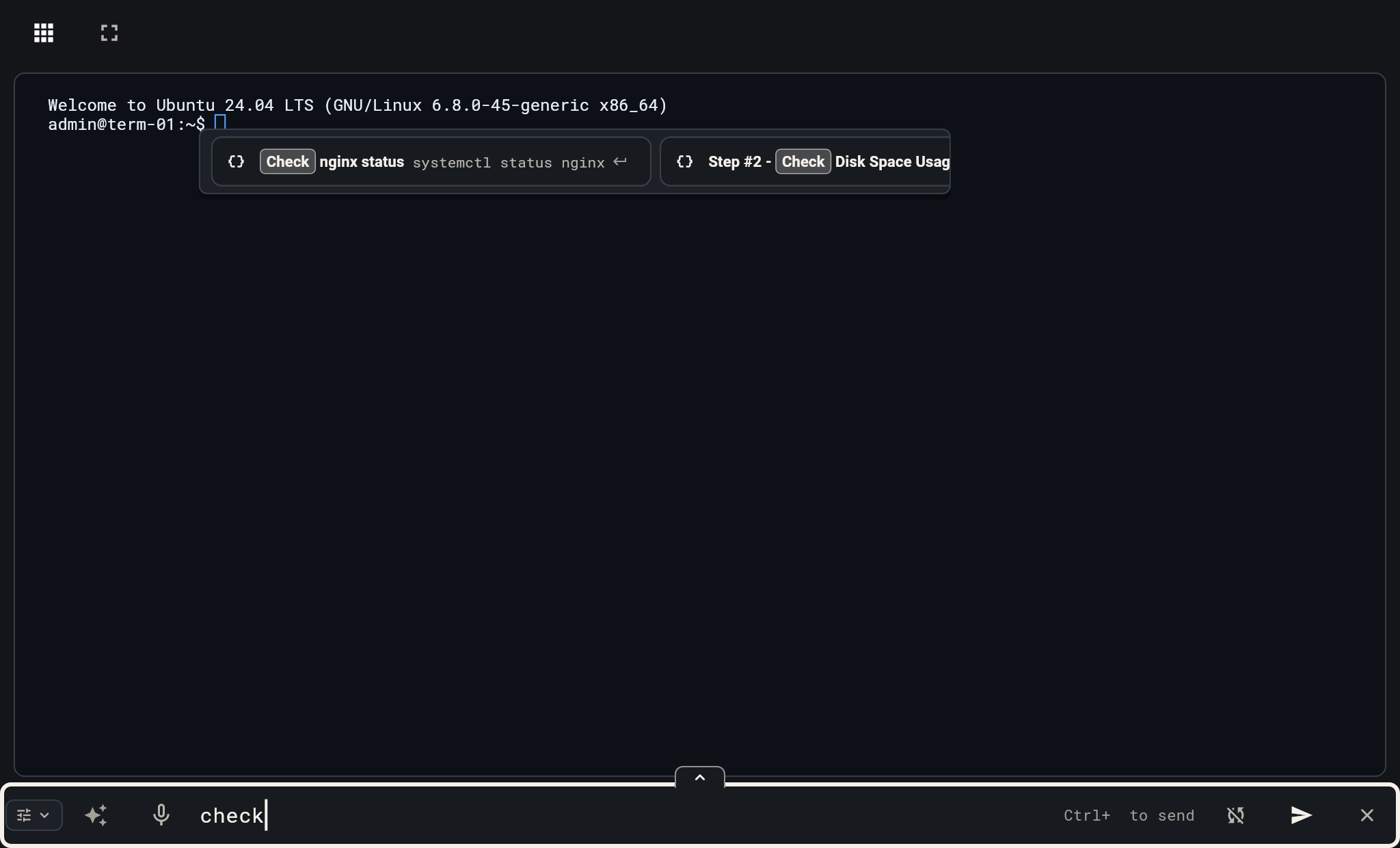
- Type a few letters of the command or snippet name you want to run.
- Use the arrow keys or click any suggestion in the list to fill it in.
- Double-check any server paths or filenames before pressing Enter.
Fill sudo passwords with one tap
When a command on your server asks for [sudo] password, you do not have to dig through a separate password manager or retype a long secret by hand. LeapTerm detects the password prompt and displays a helper banner right above the terminal input bar.
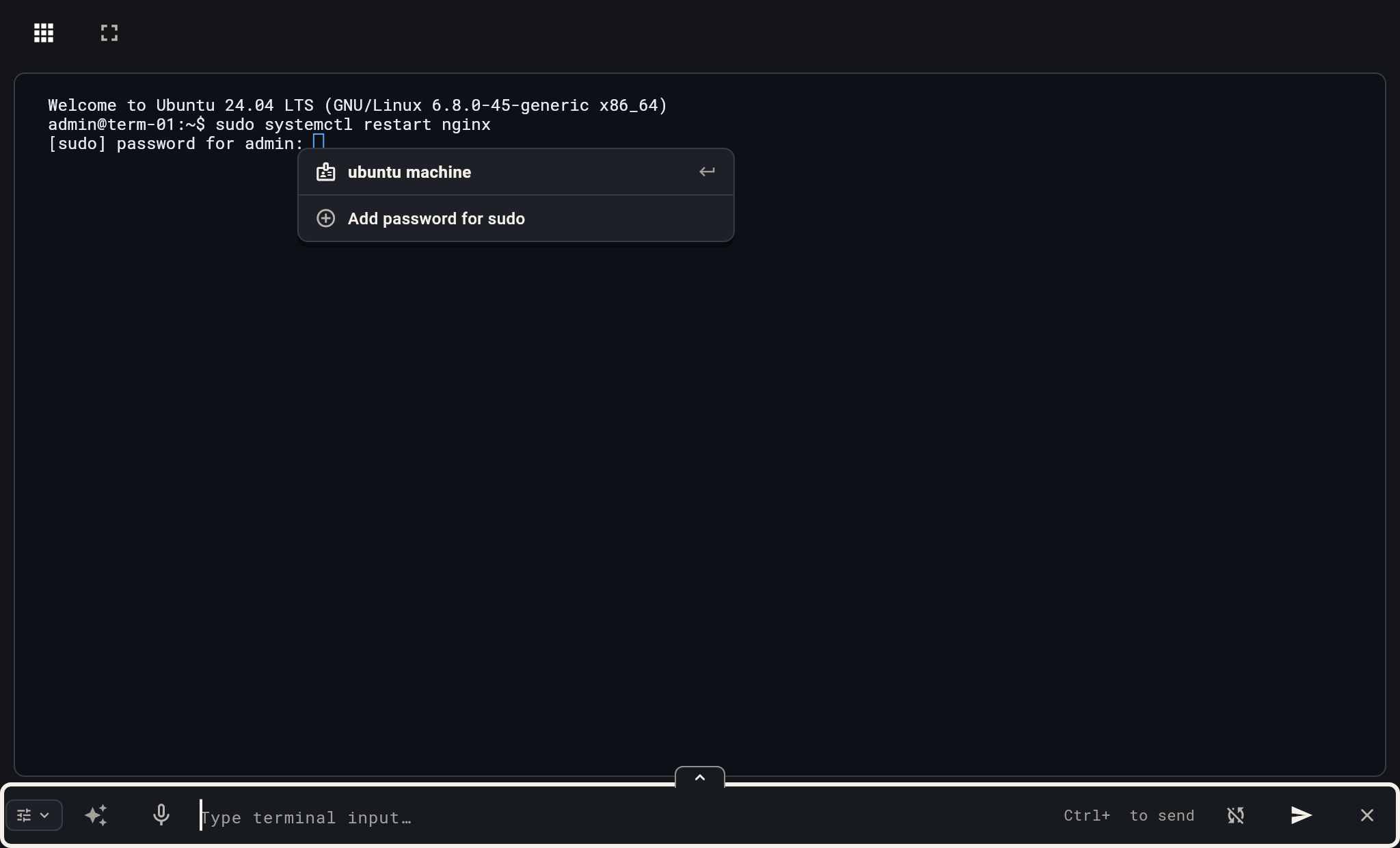
- Run your administrative command as usual, such as
sudo systemctl status nginx. - When the server prompts for your password, look for the identity banner above the terminal prompt.
- Click your saved server identity to fill the password immediately, or choose Add sudo password to save one in your encrypted vault for next time.