Open any remote file in a click
You do not need to download a file to your computer just to see what is inside. The built-in File Viewer tab lets you read documents, inspect configuration files, browse spreadsheets and play media directly inside your connected workspace.
- Connect to your server and open SFTP Files or the File Viewer tab in the top workspace bar.
- Select a file from the folder browser, or enter its remote path in the top path bar and click Open.
- Use the view mode buttons in the toolbar to switch between a formatted preview and the original raw file.
- Click Reload at any time to fetch the latest version from the server.
Pretty JSON and instant typo checks
Configuration files written in JSON are often squished into a single long line that is hard to read. When you open a .json file, LeapTerm formats it cleanly in Pretty JSON mode with clear indentation and color coding.
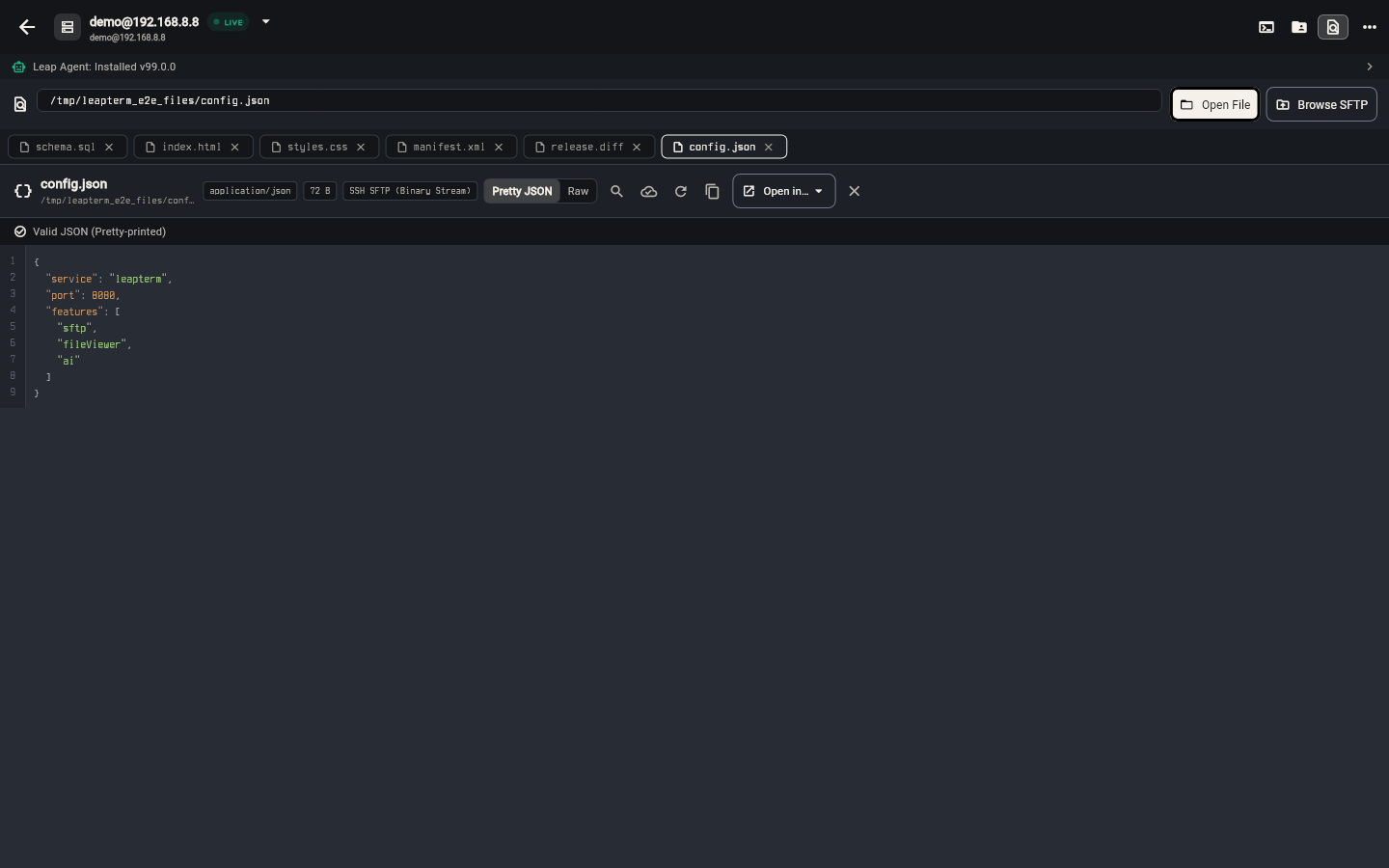
If a JSON file has a syntax mistake—such as a missing comma or extra bracket—LeapTerm displays a clear warning banner explaining the typo so you can spot it immediately. Click Raw whenever you want to see the exact text stored on disk.
Formatted Markdown and CSV tables
Project documentation and data exports are much easier to read when formatted:
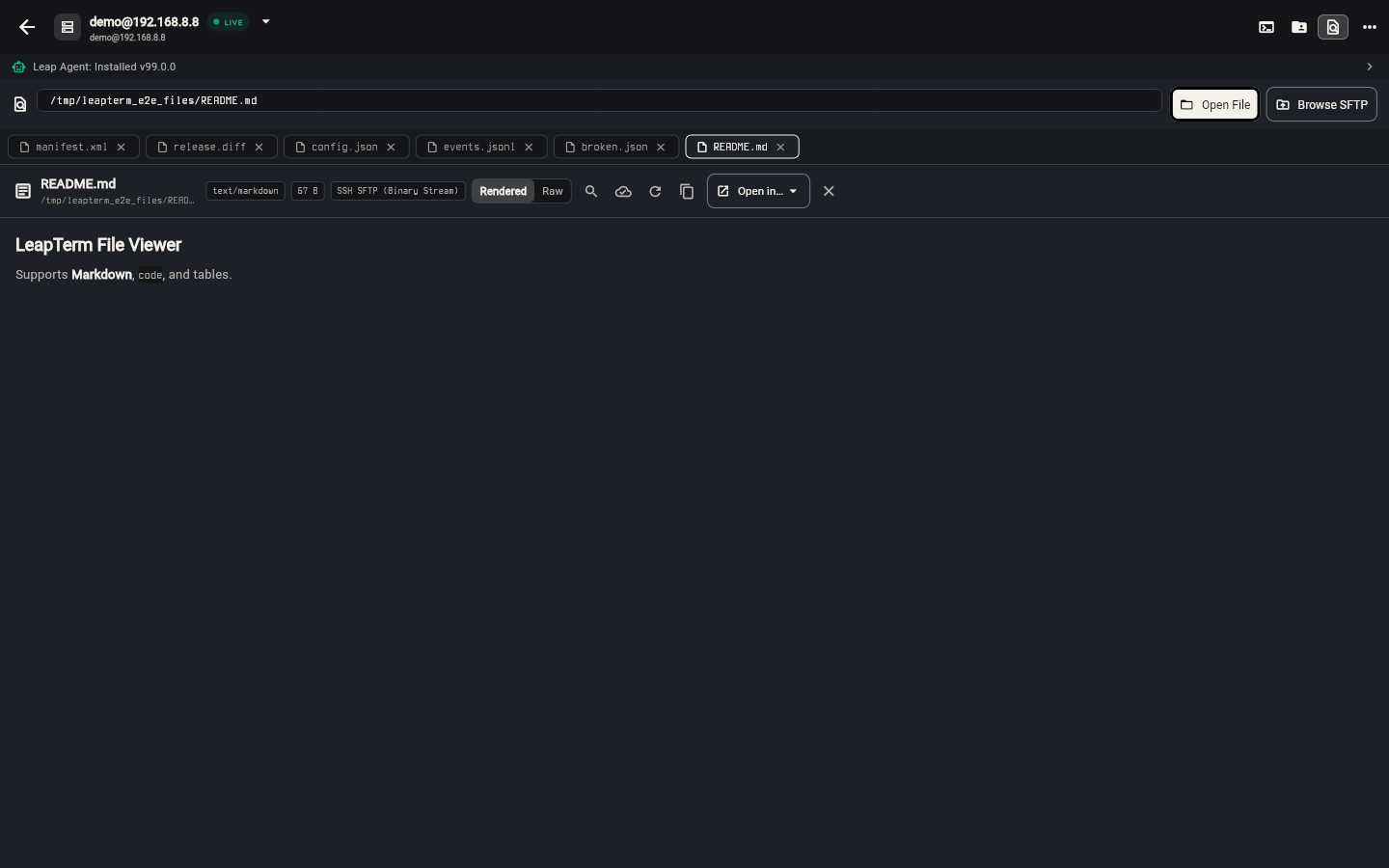
- Markdown documents (
.md): Open in Rendered mode to read headings, lists and tables like a clean web page, or switch to Raw to inspect the underlying Markdown text. - Spreadsheets and data files (
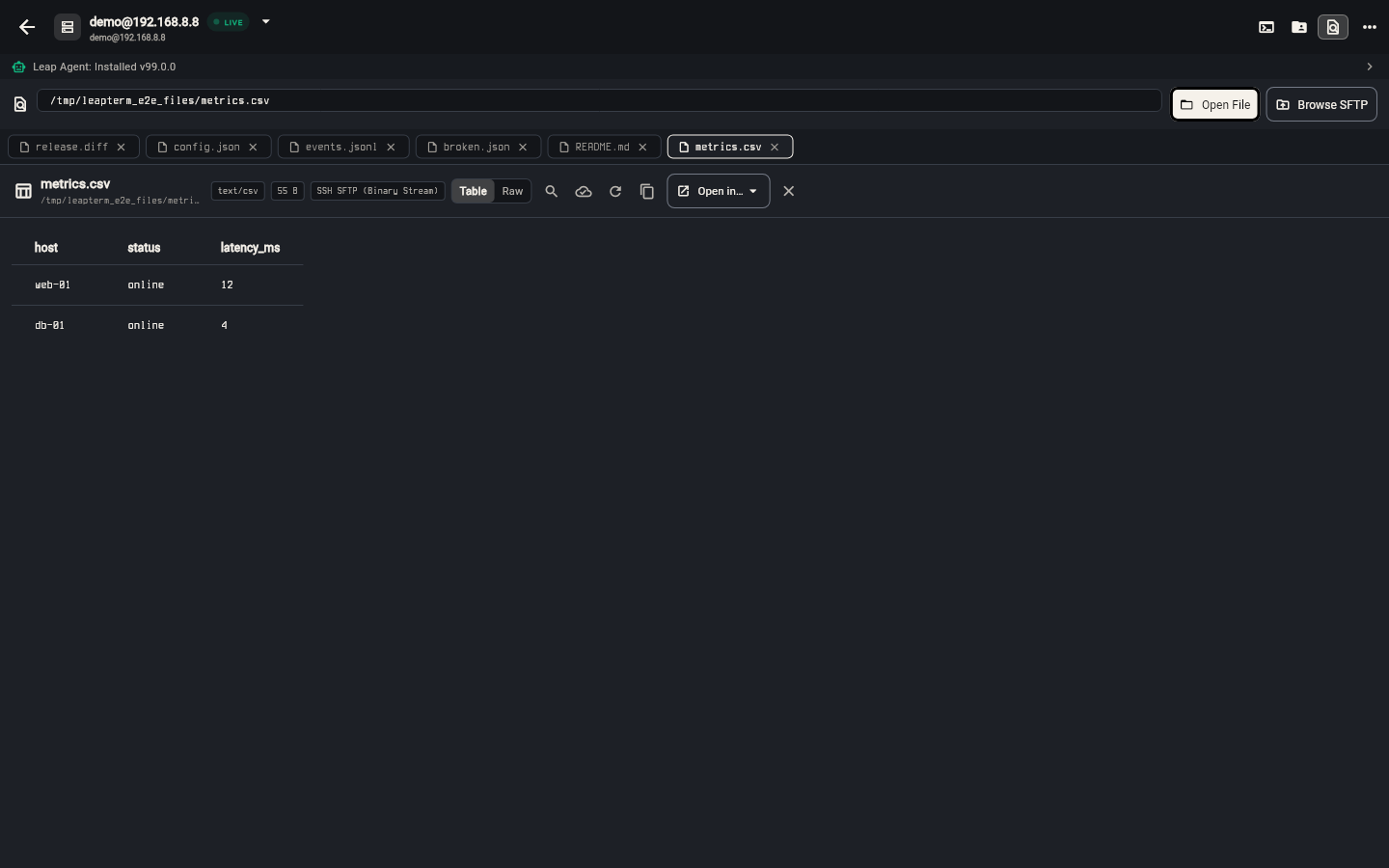
.csv,.tsv): Open in Table mode to browse rows and columns in an organized grid instead of squinting at commas, with one-click switching back to Raw.
Syntax-highlighted code and log search
When you open source code, shell scripts, YAML configs or server logs, the viewer highlights keywords and line numbers automatically.
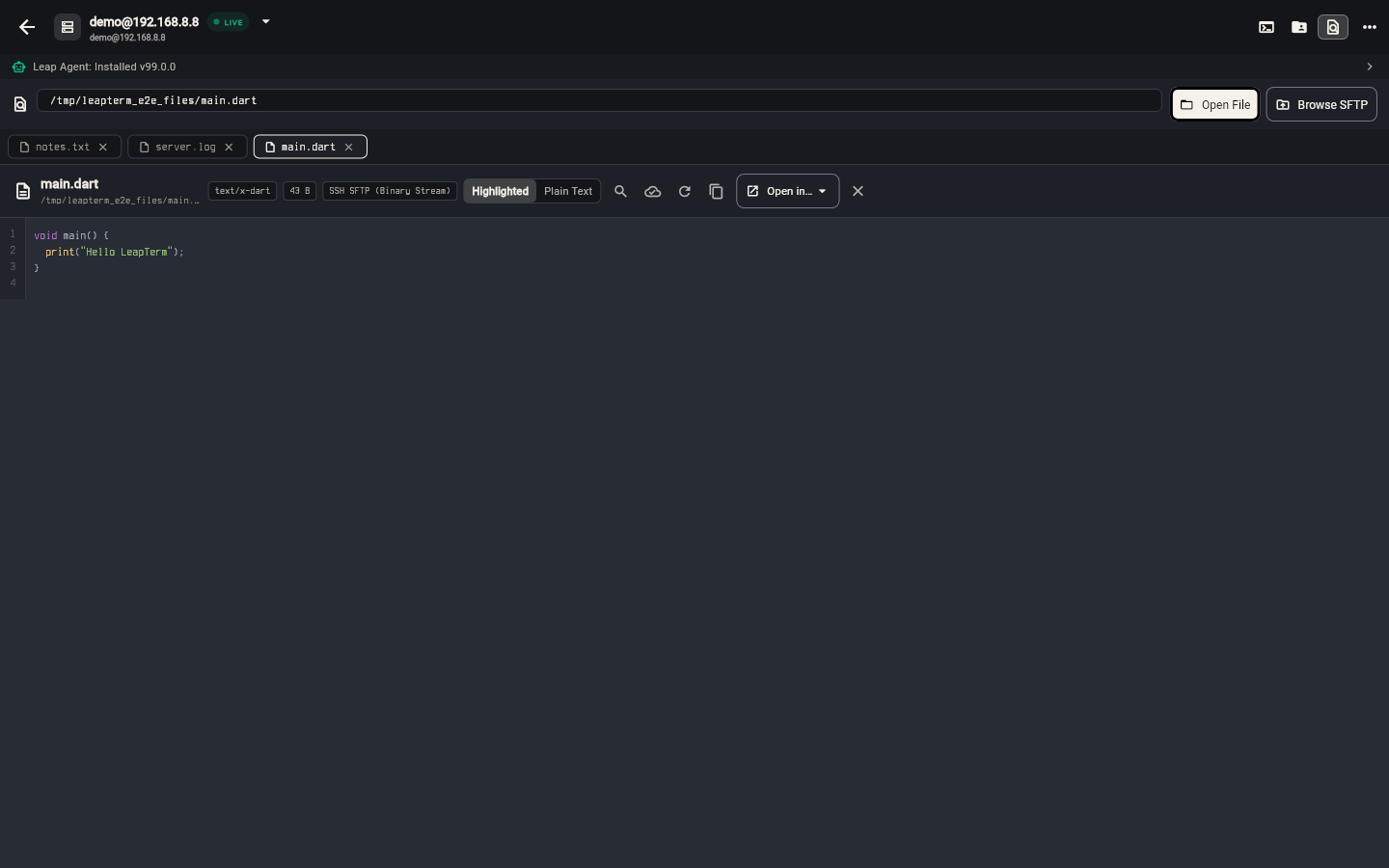
- Toggle between Highlighted and Plain Text in the top toolbar.
- Type a keyword into the Find in file box to jump directly to matching lines in long logs or config files.
- Need to make changes? Follow inspect, edit and compare files to edit and save safely.
PDFs, graphics, media and binary files
The File Viewer also handles rich documents, graphics, audio, video and binary data without leaving your workspace:
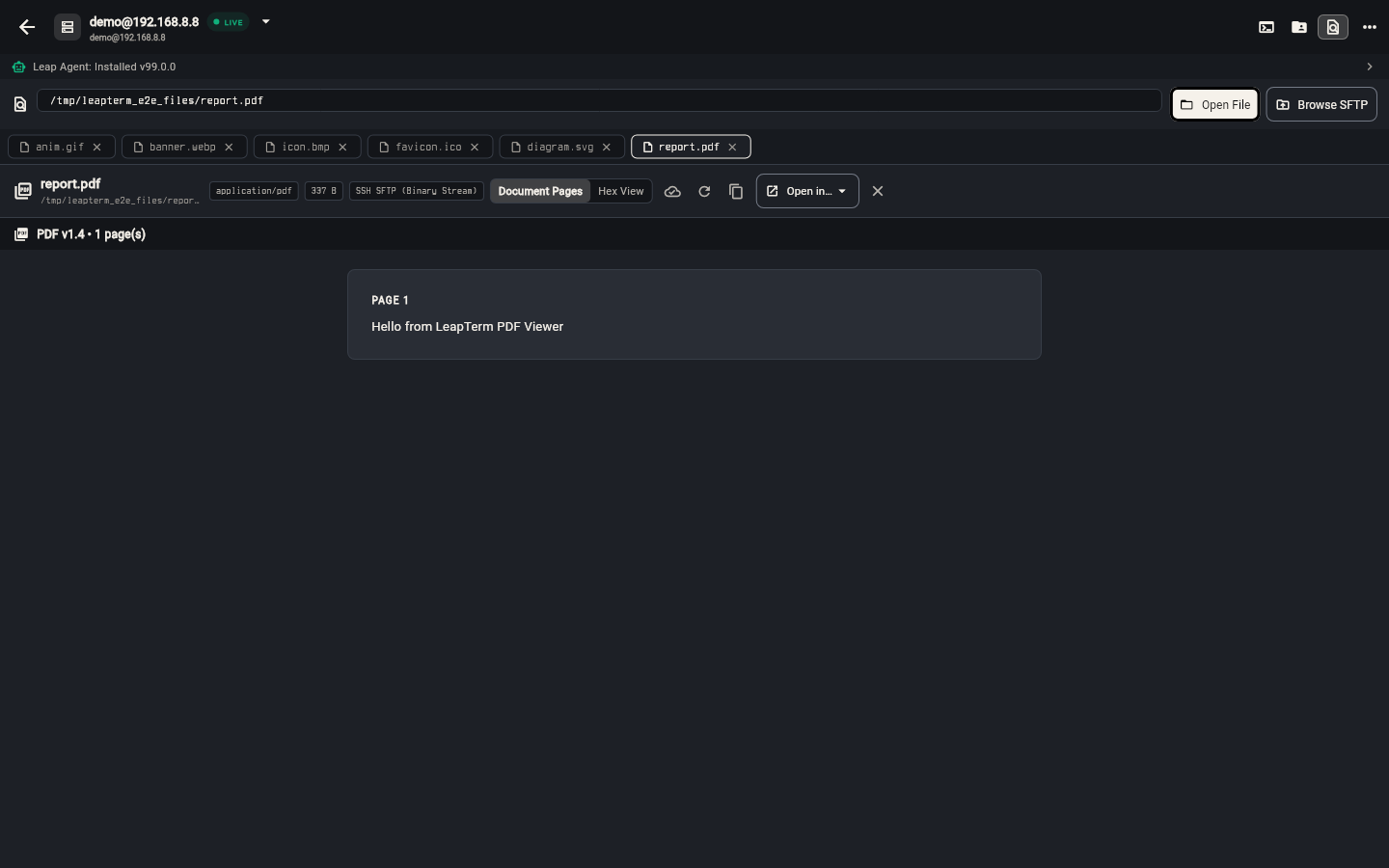
- PDF documents (
.pdf): View multi-page documents right in the Document Pages preview without installing a local PDF reader. - Images and vector graphics (
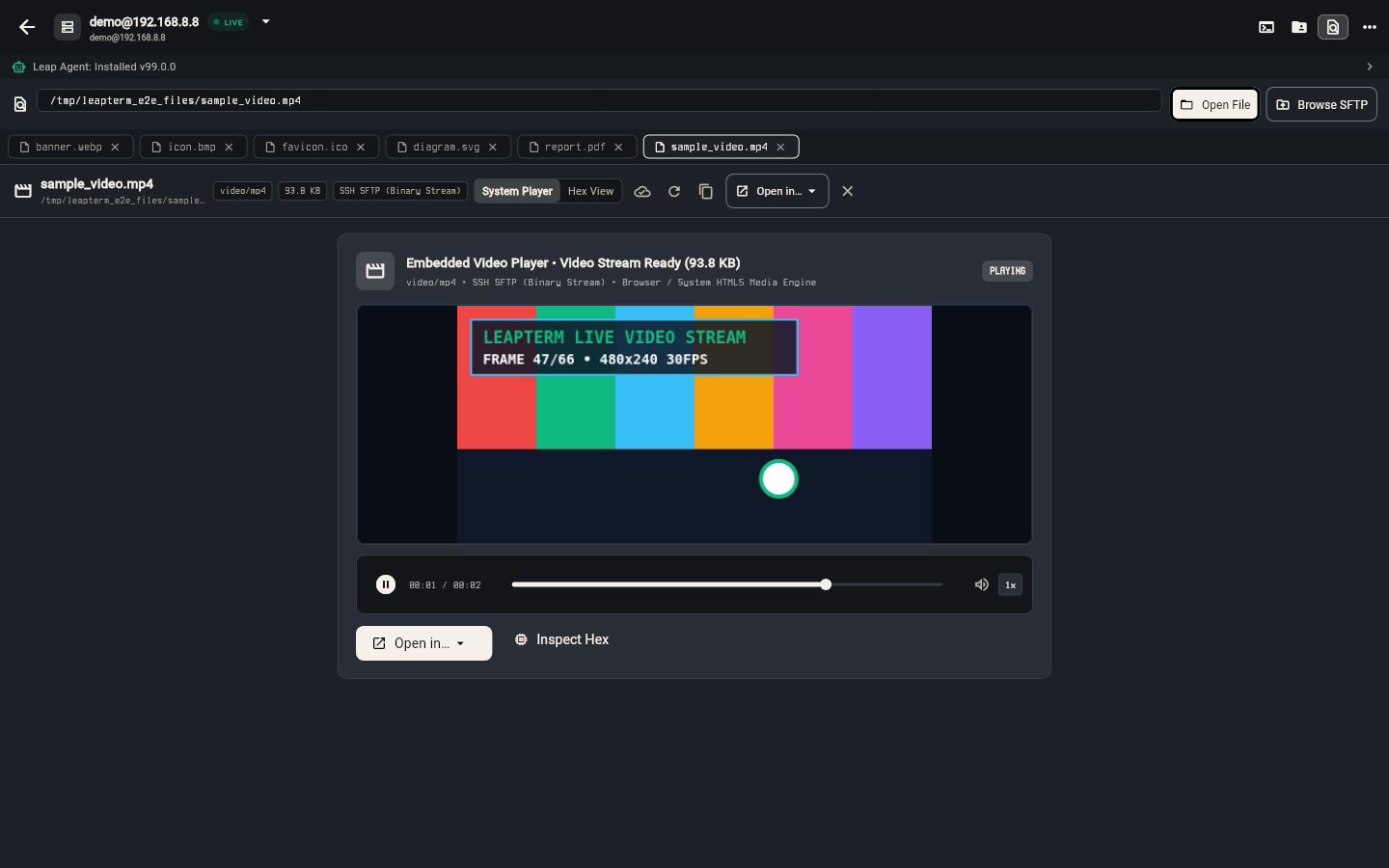
.png,.jpg,.svg): Preview photos and toggle between Vector Preview and XML Source for SVG icons. - Video and audio (
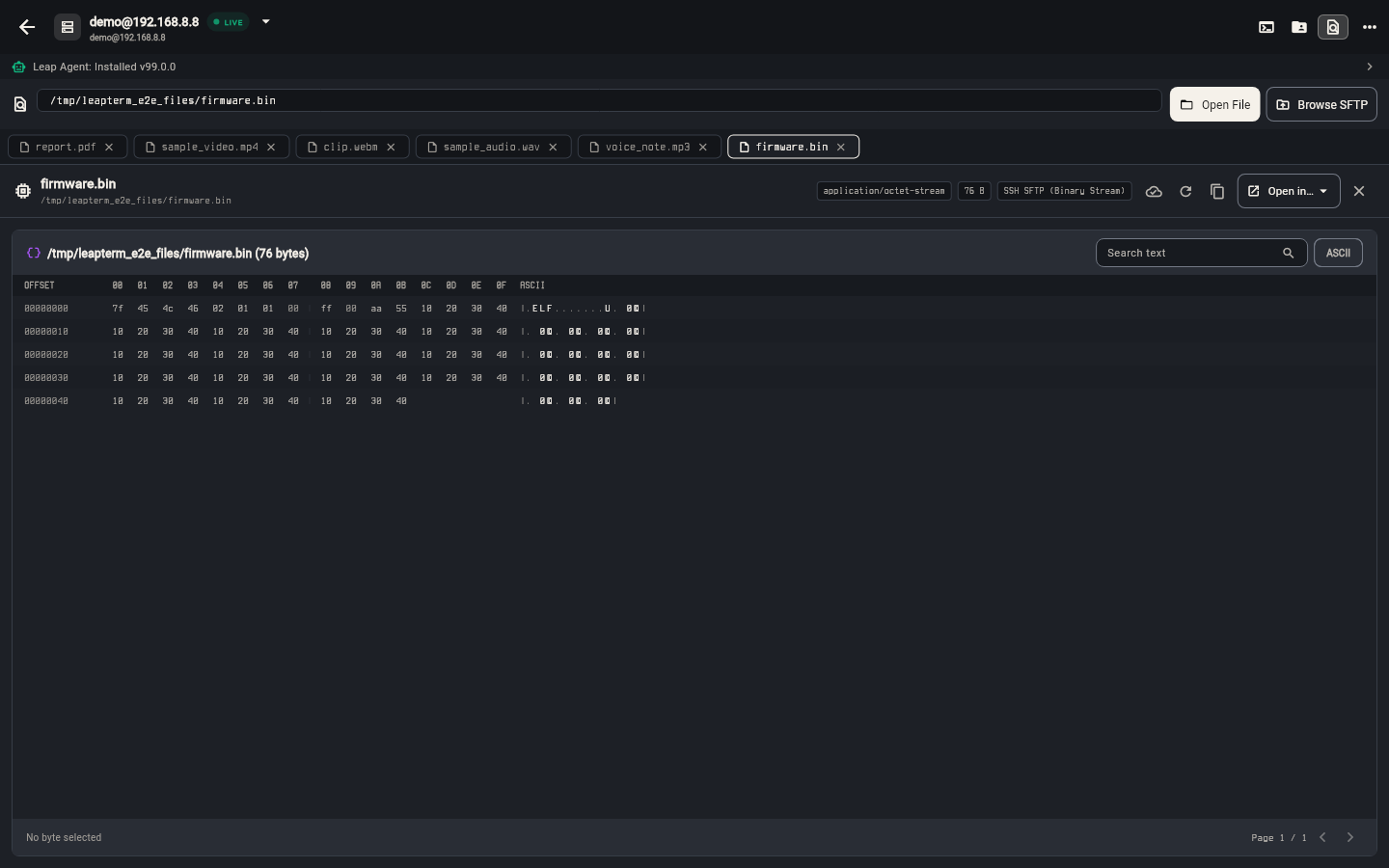
.mp4,.wav): Stream video recordings and audio clips over your SSH connection using built-in playback controls. - Binary files (
.binand executables): Inspect non-text files safely in Hex View, which displays byte offsets alongside readable characters so binary data never scrambles your screen.