
Built-in Leap Browser
When you manage a remote server, home lab or cloud cluster, many tools have web-based dashboards that are only reachable from inside that private network. Instead of setting up manual SSH tunnels or installing an external browser helper, you can open internal websites directly inside your LeapTerm workspace using the built-in Browser tab.
You can open a page at any time by selecting the Browser tab in a connected workspace, or simply ask the AI companion to open a site for you (for example, open website http://192.168.3.1). If you ever prefer to view the page in your computer's default web browser instead, choose Open in External Browser right from the companion card or the browser toolbar.
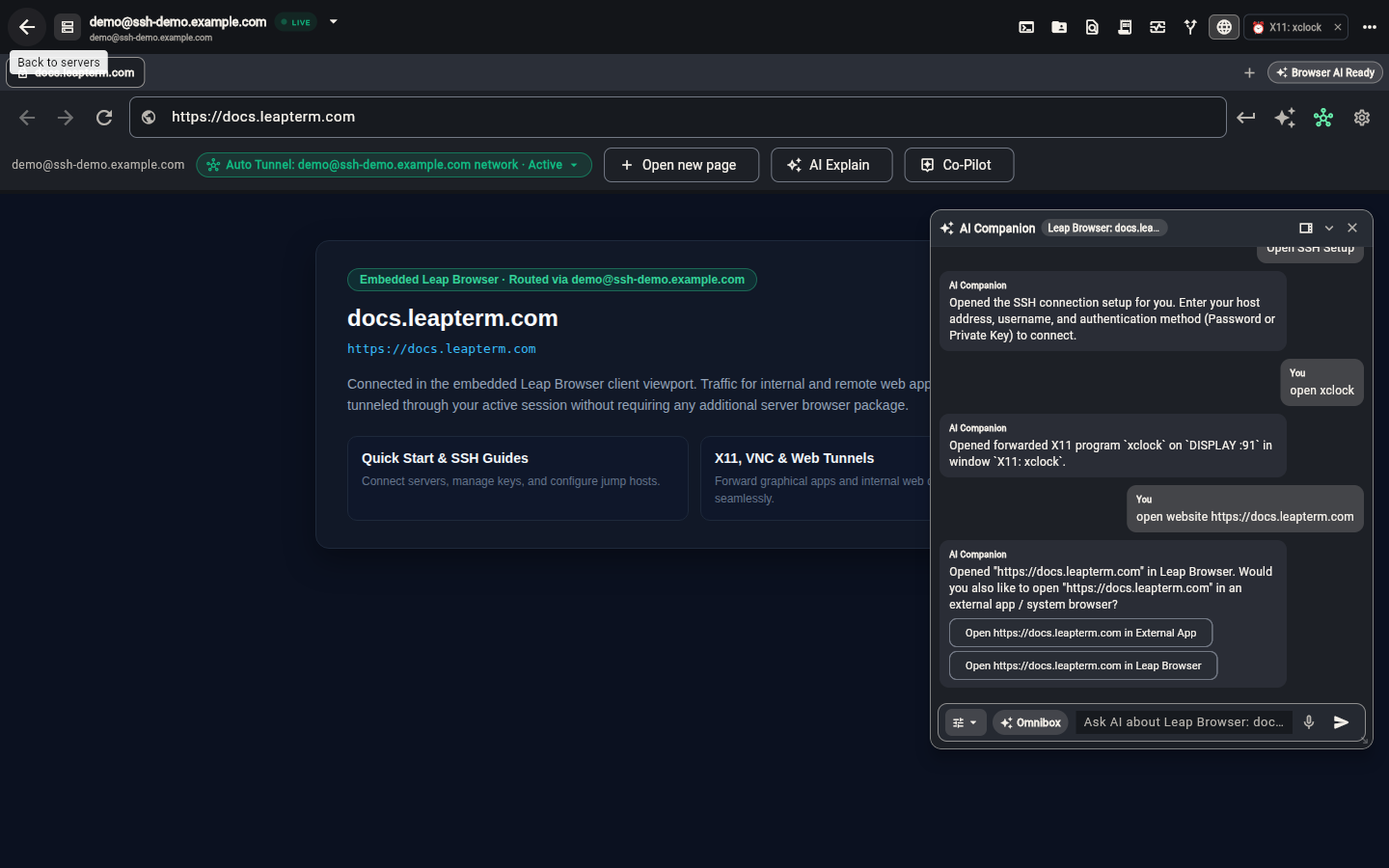
Automatic SSH Tunnel (Auto Tunnel)
Whenever you open a website inside a connected SSH workspace, LeapTerm automatically forwards that web traffic securely through your SSH connection. You will see Auto Tunnel: Active in the browser bar, meaning your requests travel directly through the encrypted SSH session to reach local development servers, router admin panels or internal dashboards without exposing those ports to the public internet.
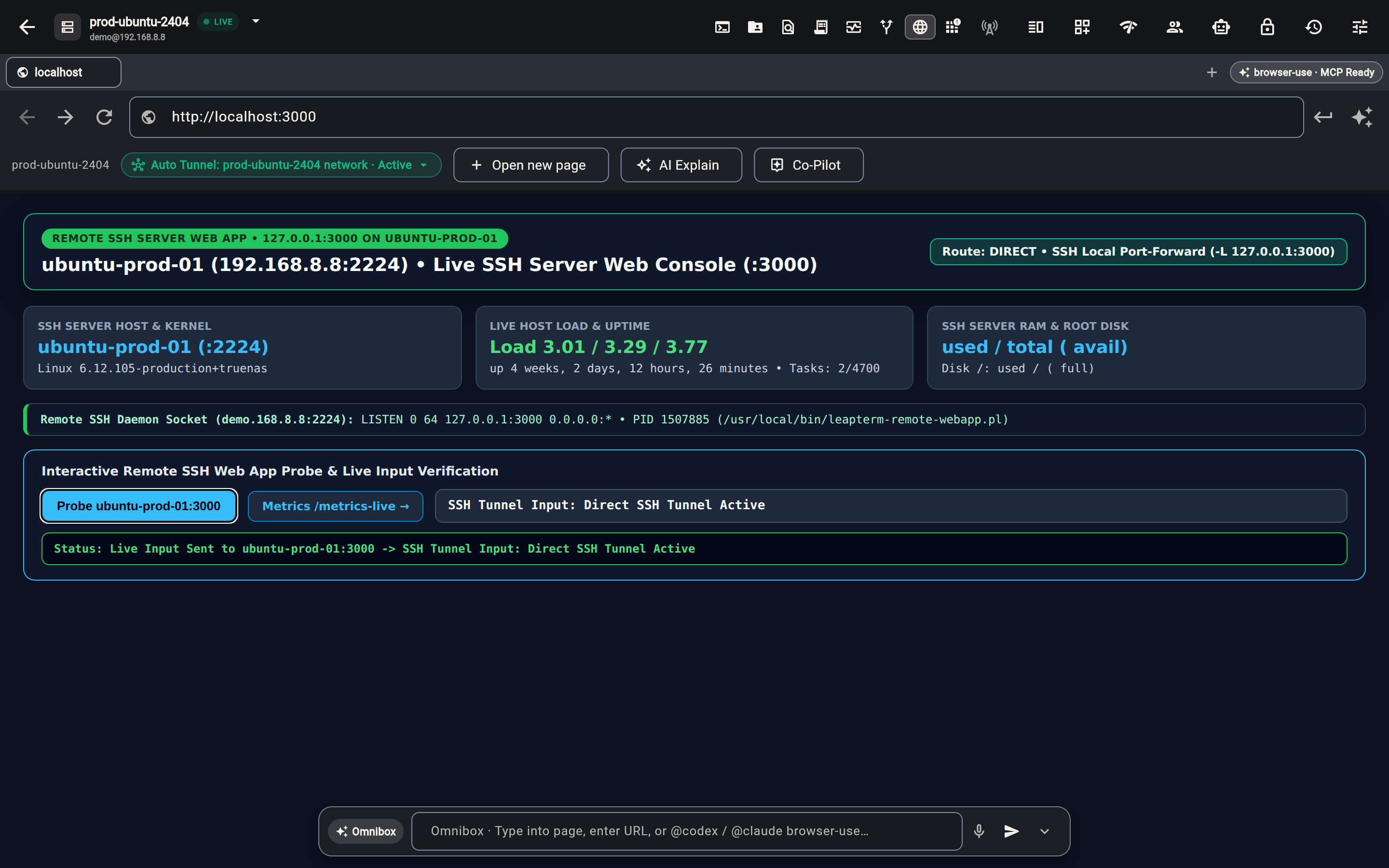
If direct port forwarding is disabled on the server or you are connecting through a relay, you can switch Auto Tunnel off in the toolbar to stream the remote browser view instead, or choose Open in External Browser when working with public links.
Smart VPN and proxy routing across multiple servers
If you work with more than one private network at the same time—for example, a home lab on 192.168.3.0/24 through Server A and a private cloud cluster on 10.20.0.0/16 through Server B—LeapTerm can automatically send each website or IP address through the right server.
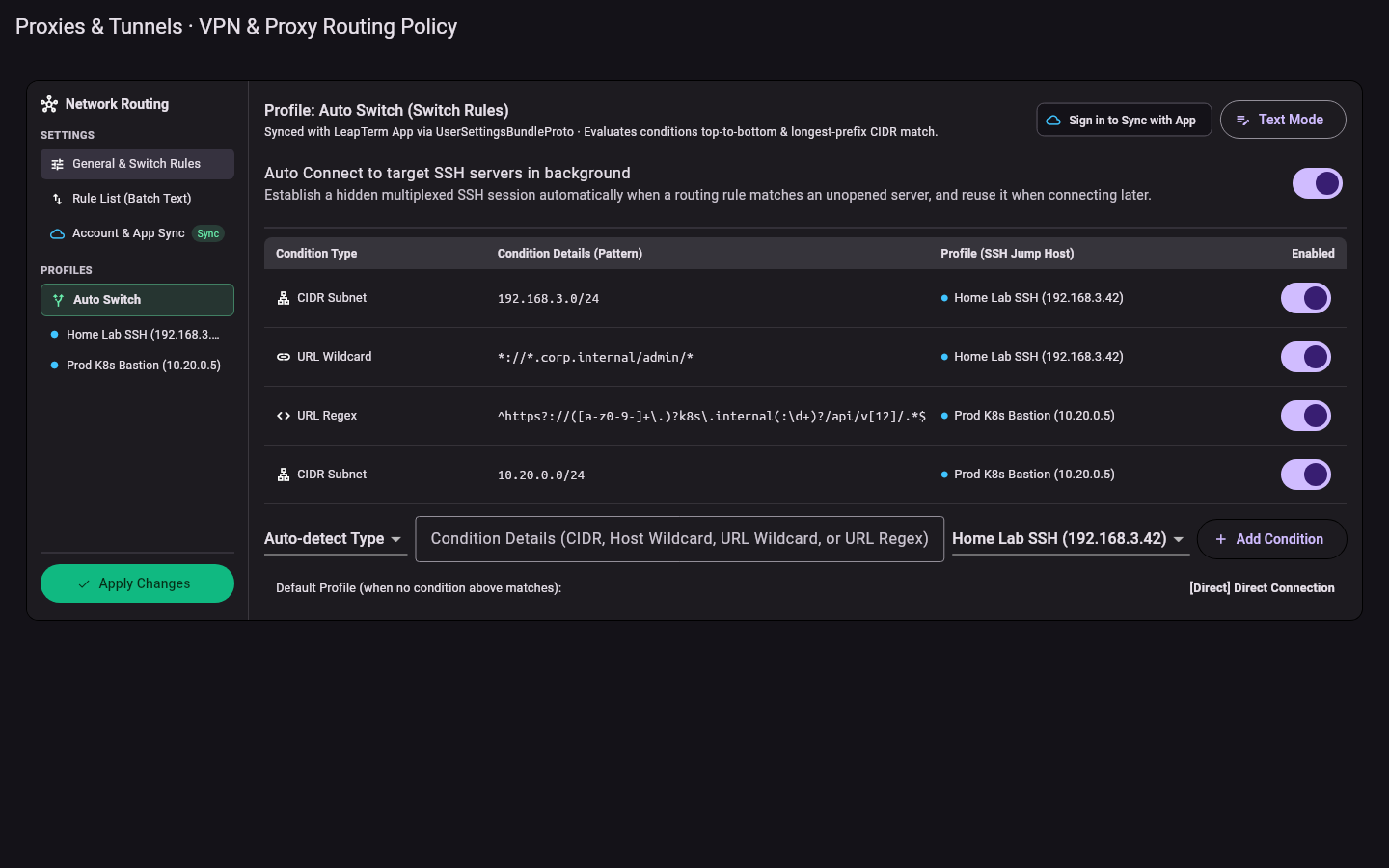
Open Proxies & Tunnels → Route Strategy to manage how private traffic is routed:
- Auto-discover private subnets. LeapTerm can inspect your connected SSH servers, detect the private networks they can reach, and create routing rules automatically.
- Match domains and IP ranges. Add rules for internal domain names (such as
*.corp.internalor*.svc.cluster.local) or private IP subnets so each address always uses the matching server tunnel. - Choose a default fallback. Keep normal public websites on a direct connection while sending private addresses through their assigned SSH server or proxy.
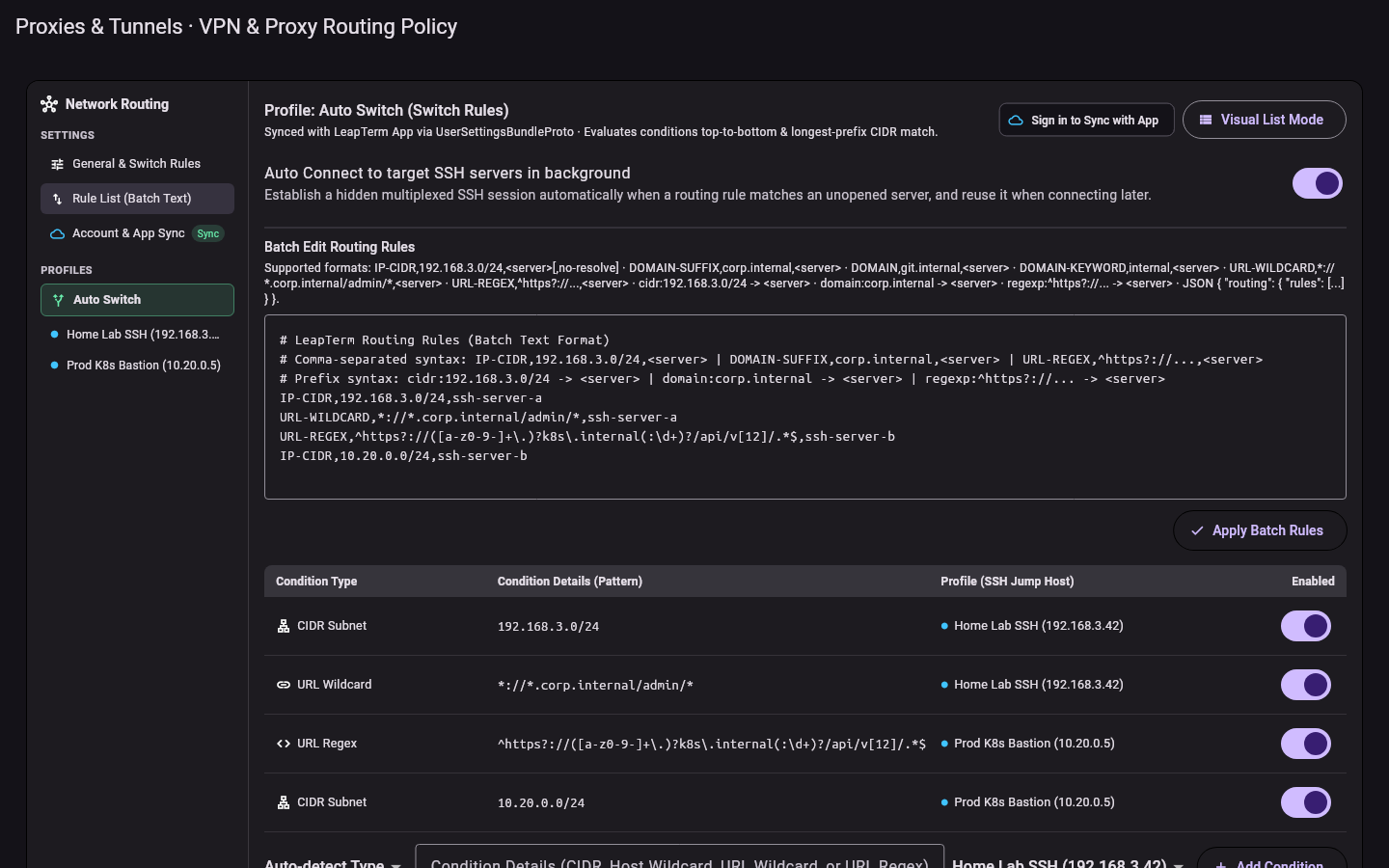
Edit rules quickly with Batch Text Mode
When you have many internal subnets or domain rules to maintain, switch to Batch Text Mode. You can paste, edit or review all of your routing rules as plain text lines in one place and apply them immediately.
Seamless browsing across different private networks
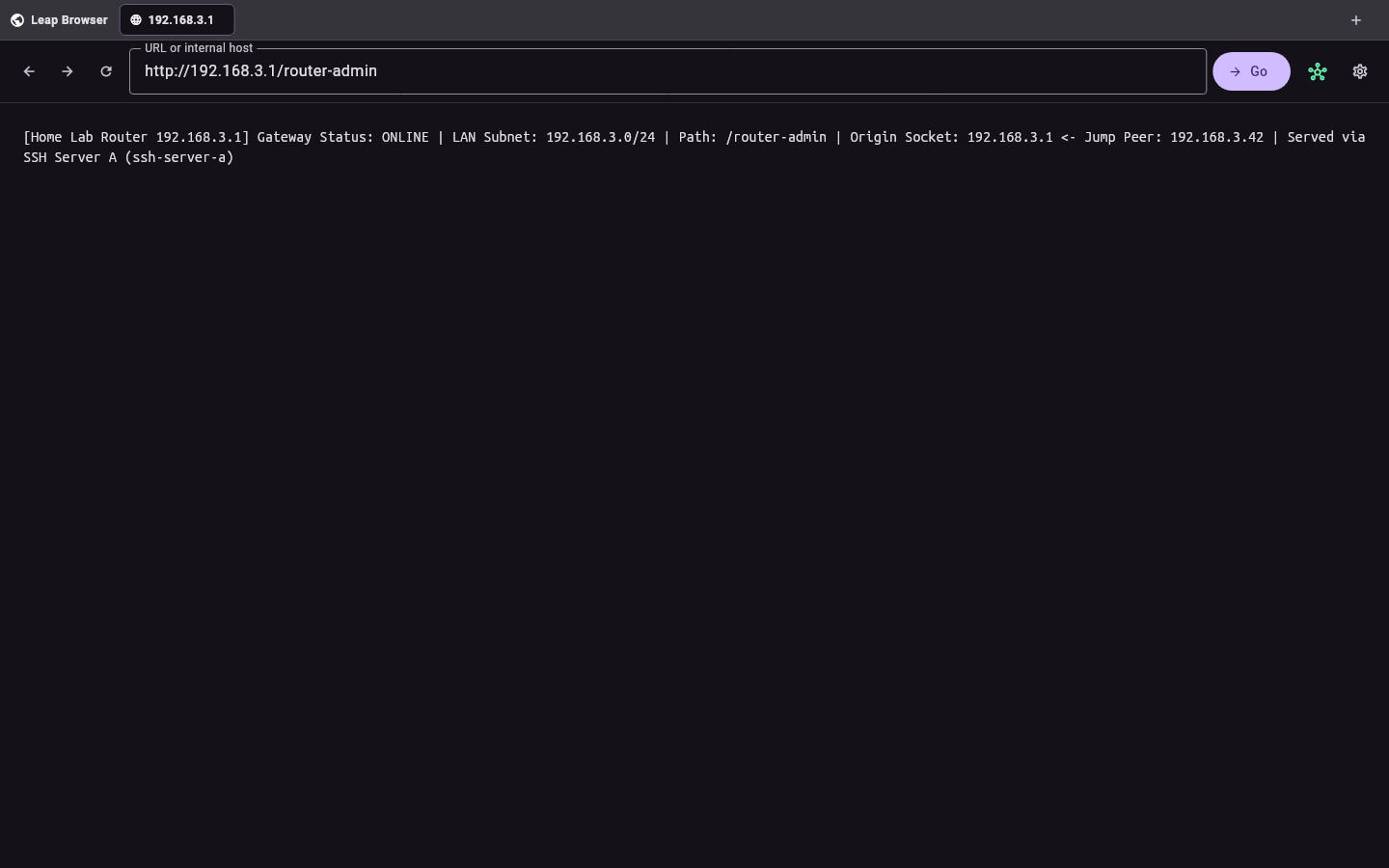
Once your routing rules are active, you can type any internal address into the Leap Browser and LeapTerm will pick the right server automatically. For example, opening 192.168.3.1 routes through Server A to reach your home-lab router dashboard:
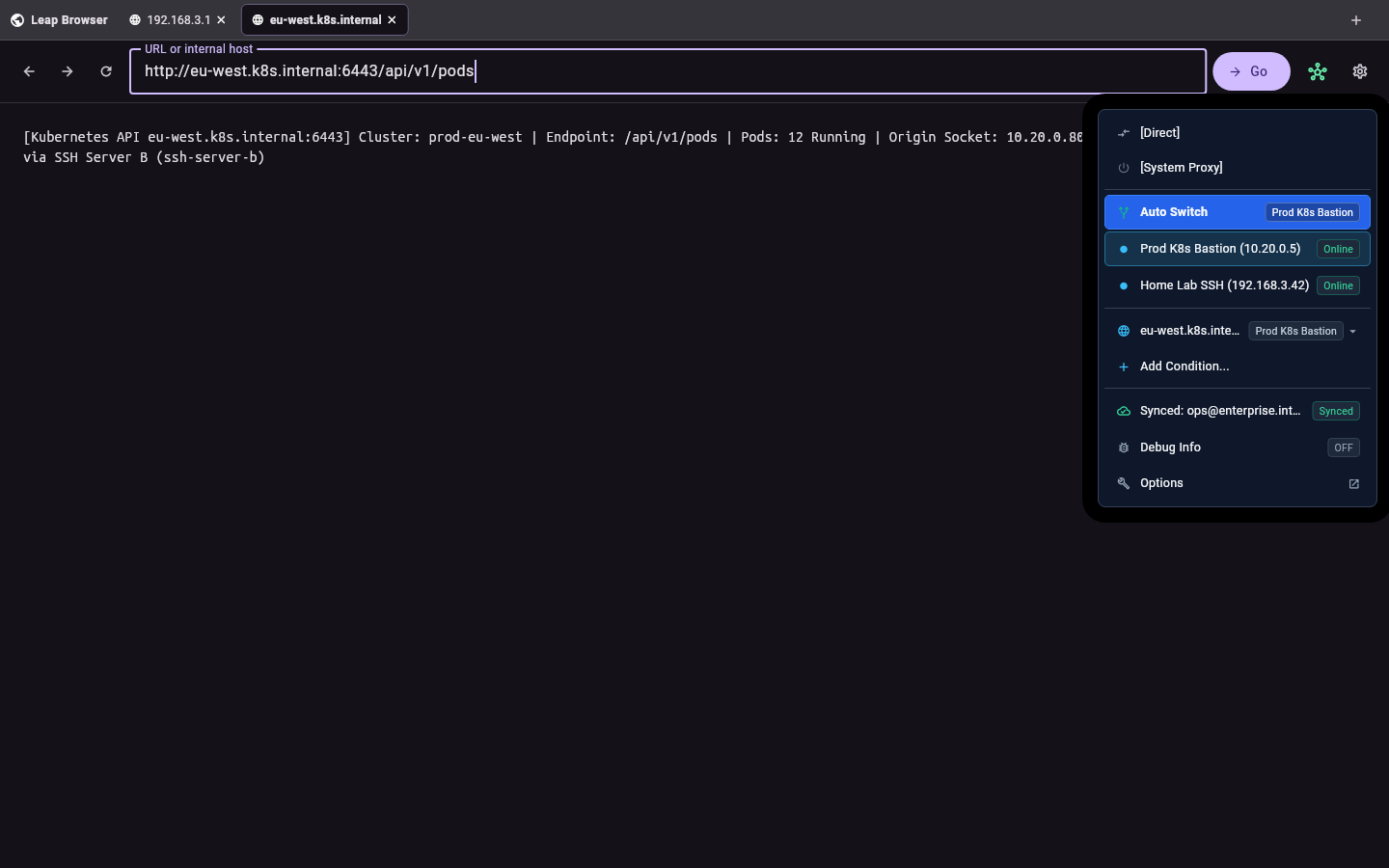
Opening an internal cluster address on 10.20.0.0/16 in the very same browser automatically routes through Server B to reach your private Kubernetes endpoint:
See port forwarding and SOCKS5 if you also need to expose a local port to other apps on your device, or remote desktops for more details on browser sync and workspace controls.